
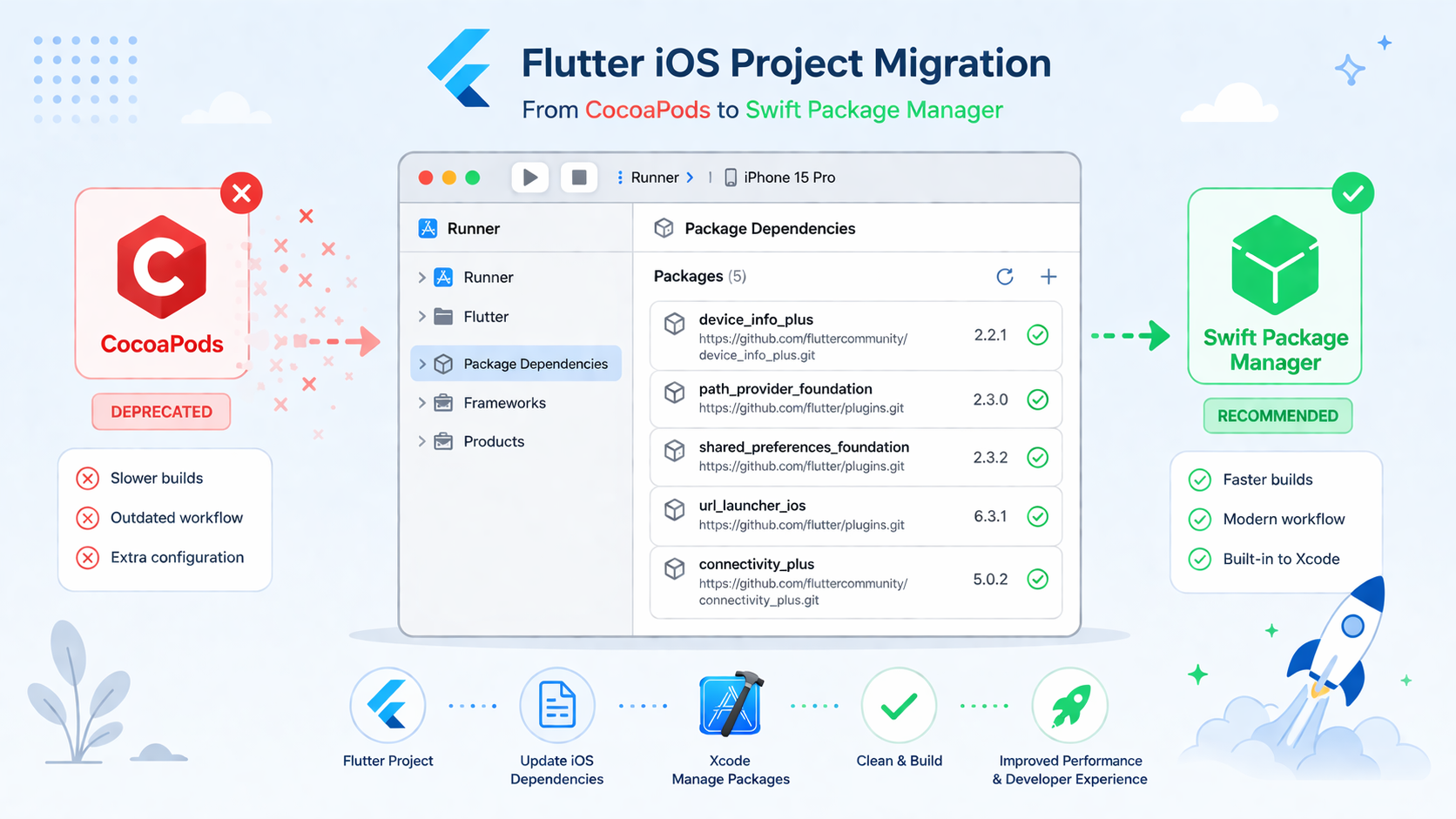
If your Flutter iOS project still runs on CocoaPods, there are now three deadlines converging on you at once. Firebase stops publishing to CocoaPods in October 2026. Flutter 3.44 ships with SPM as the default—meaning new projects won't need CocoaPods at all. And the CocoaPods trunk goes permanently read-only on December 2, 2026—no new pods, no updates, nothing. This guide walks through the exact migration steps, including the two version requirements most tutorials miss, and what actually happens when you run a package that hasn't migrated yet.
Before You Touch Anything: Two Requirements That Will Break Your Build
Most SPM migration guides skip these. Don't find out the hard way mid-migration.
Flutter 3.44 or higher is required. SPM support technically exists from Flutter 3.24, but 3.44 is where it becomes the stable default. On older versions you'll hit incomplete migrations, missing package resolutions, and build failures that are annoying to debug. Check your version first:
flutter --version
If you're below 3.44, upgrade before doing anything else:
flutter upgrade
Minimum iOS Deployment Target must be 15.0 or higher in Xcode. SPM strictly enforces that your app's minimum iOS version is equal to or higher than what its packages require. Firebase, and many other modern Swift packages, target iOS 15+. If your Xcode project still targets iOS 12 or 13, you'll hit this error the moment SPM tries to resolve dependencies:
Target Integrity: The package product 'FirebaseCore' requires minimum platform version 15.0 for the iOS platform, but this target supports 12.0
Fix it before migrating. In Xcode: click the Runner project in the Project Navigator → select the Runner target → go to General tab → find Minimum Deployments → set iOS to 15.0. Then regenerate the project config:
flutter build ios --config-only
With both requirements confirmed, you're ready.
Step 1: Enable Swift Package Manager
From your project root, run:
flutter config --enable-swift-package-manager
This is the switch that tells Flutter to use SPM instead of CocoaPods for iOS dependency resolution. Without it, everything else in this guide does nothing.
Step 2: Delete Podfile.lock and the Pods Folder
While still in the project root, remove the CocoaPods artifacts:
cd ios
rm -rf Podfile.lock Pods
Or delete them from the file explorer in VS Code. You want a clean slate before the next step.
Step 3: Deintegrate CocoaPods from Xcode
Still inside the ios folder, run:
pod deintegrate
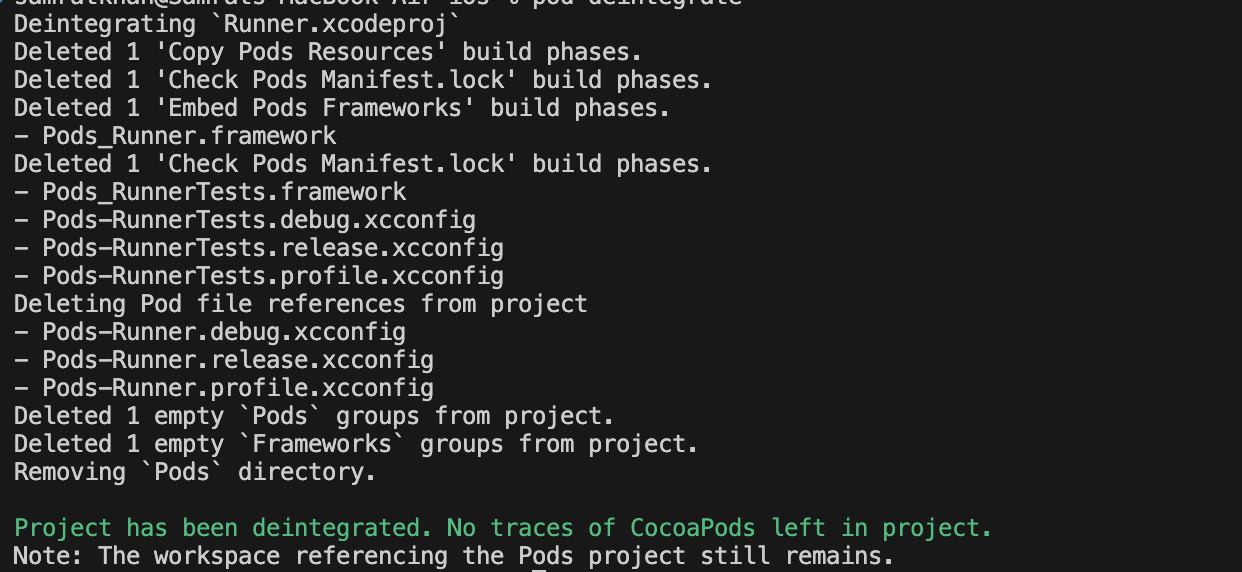
What this actually does: pod deintegrate removes the CocoaPods build phases from your Xcode project files. It strips the Pods project reference from your workspace, clears the CocoaPods-generated build settings from project.pbxproj, and disconnects Xcode from the CocoaPods build system entirely. It does not delete the Podfile itself—that stays in place as a reference. Think of it as surgically unhooking CocoaPods from Xcode without touching anything else.
Step 4: Open Your iOS Project in Xcode
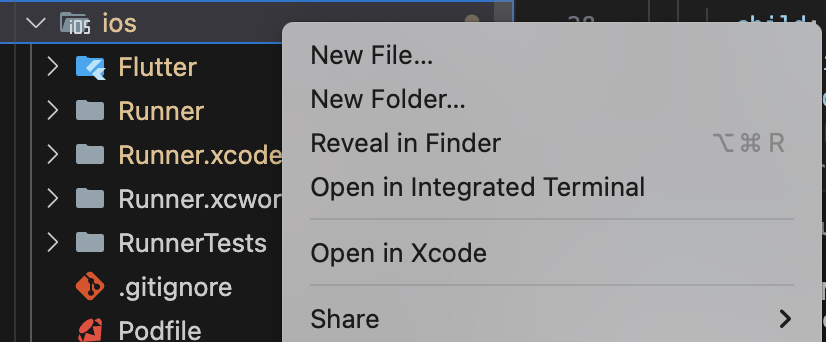
In VS Code's file explorer, right-click the ios folder and open it in Xcode. Or from the terminal:
open ios/Runner.xcworkspace
If Xcode warns about the workspace file being modified or missing Pods references, dismiss it. That's expected—you just deintegrated CocoaPods.
Step 5: Add Firebase via Xcode Package Dependencies
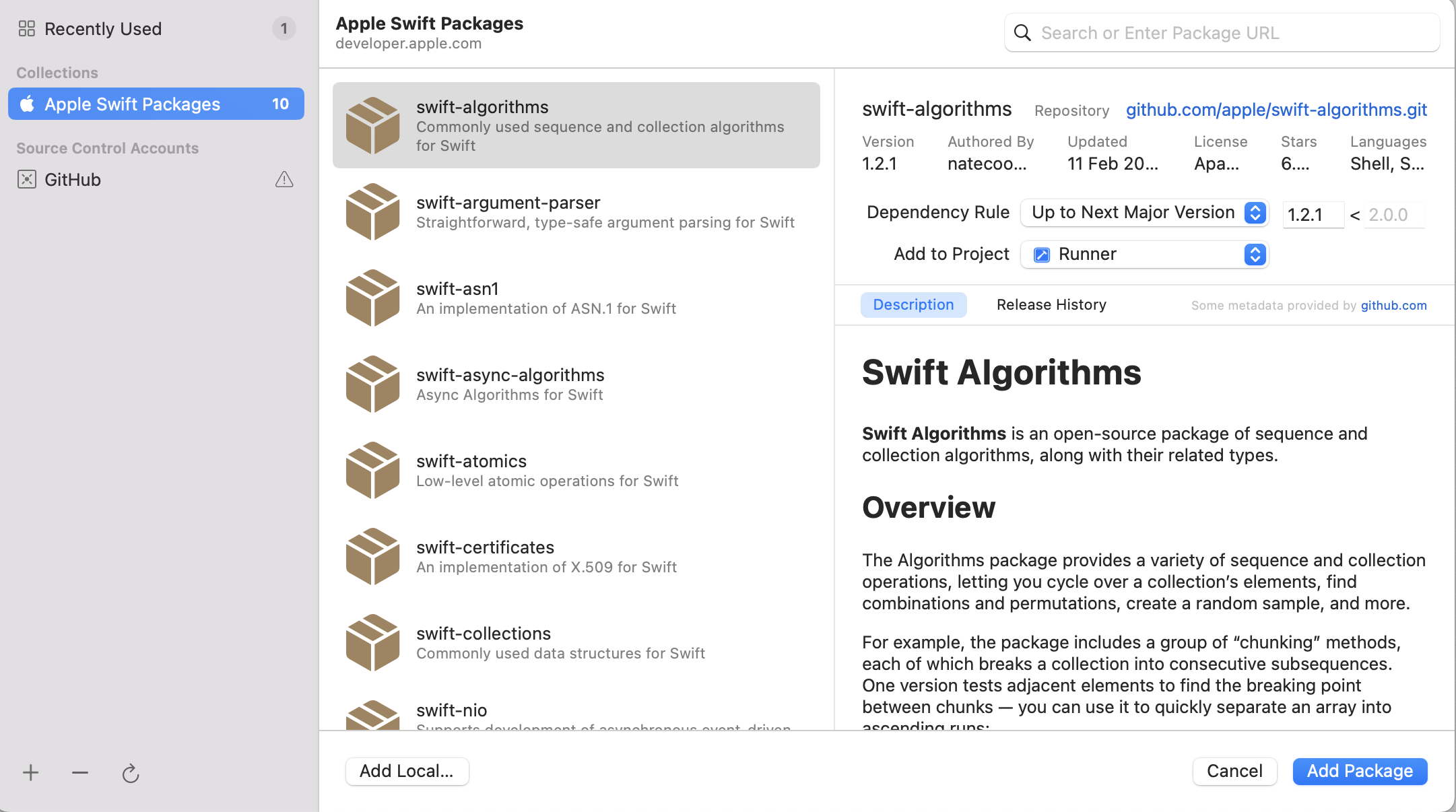
In Xcode, go to File → Add Package Dependencies. A dialog opens with a search bar in the top right.
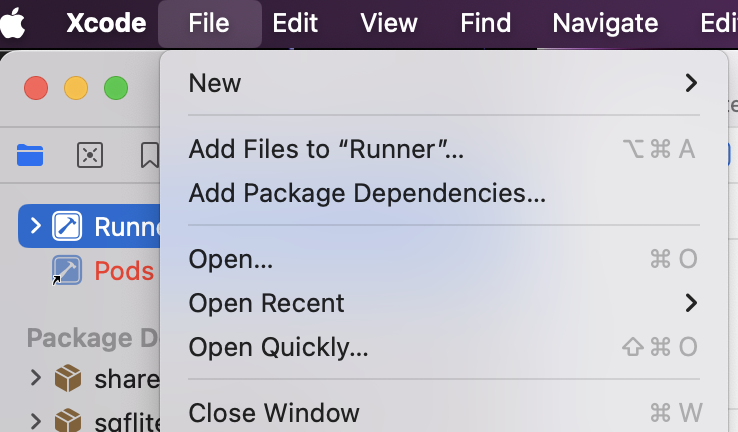
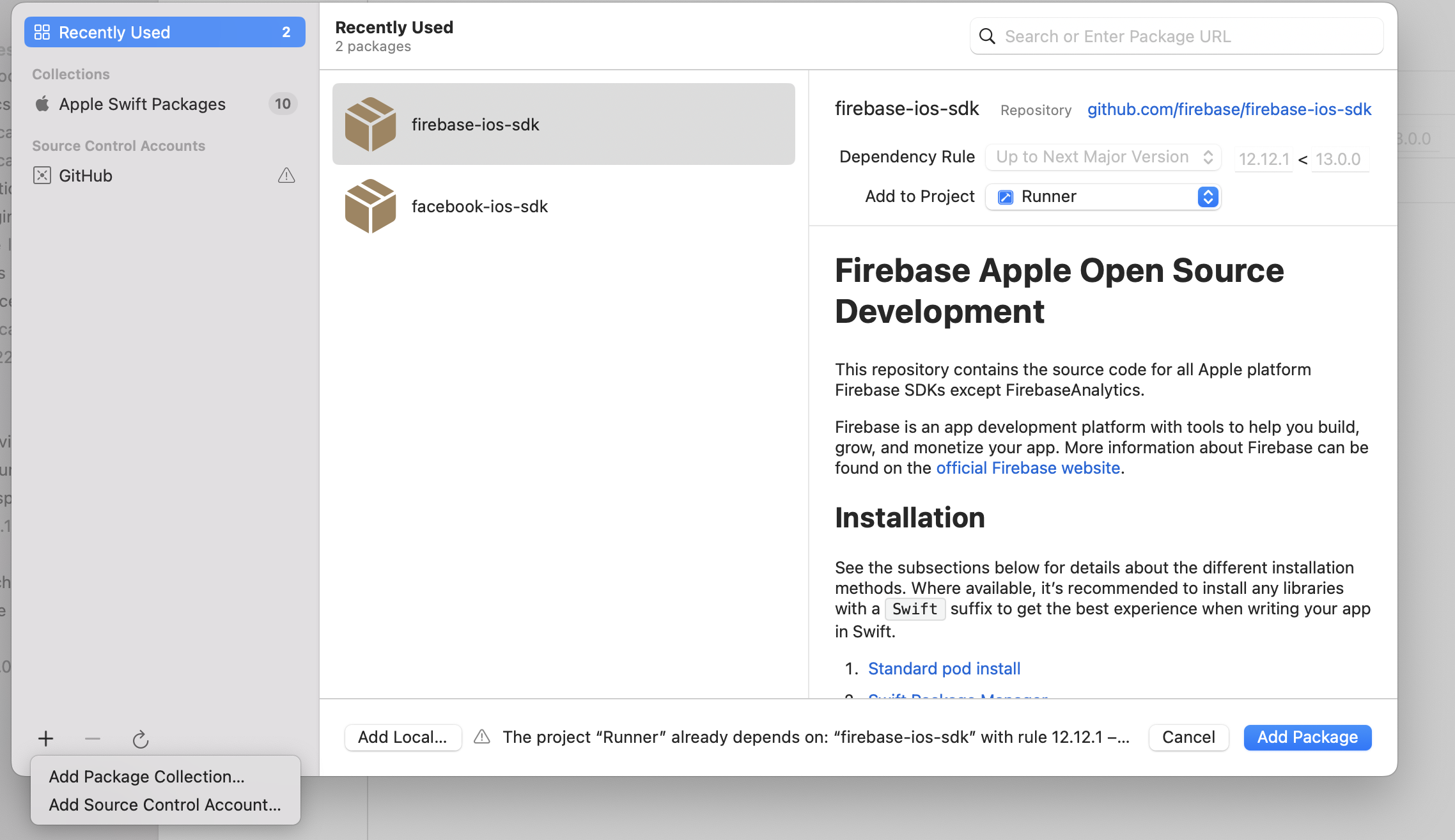
Paste this URL:
https://github.com/firebase/firebase-ios-sdk
Press Enter. Xcode fetches the repository. When the Firebase package appears, click Add Package. Xcode then asks which Firebase products to include—select what your app actually uses (FirebaseCore, FirebaseAuth, FirebaseFirestore, etc.) and click Add Package again.
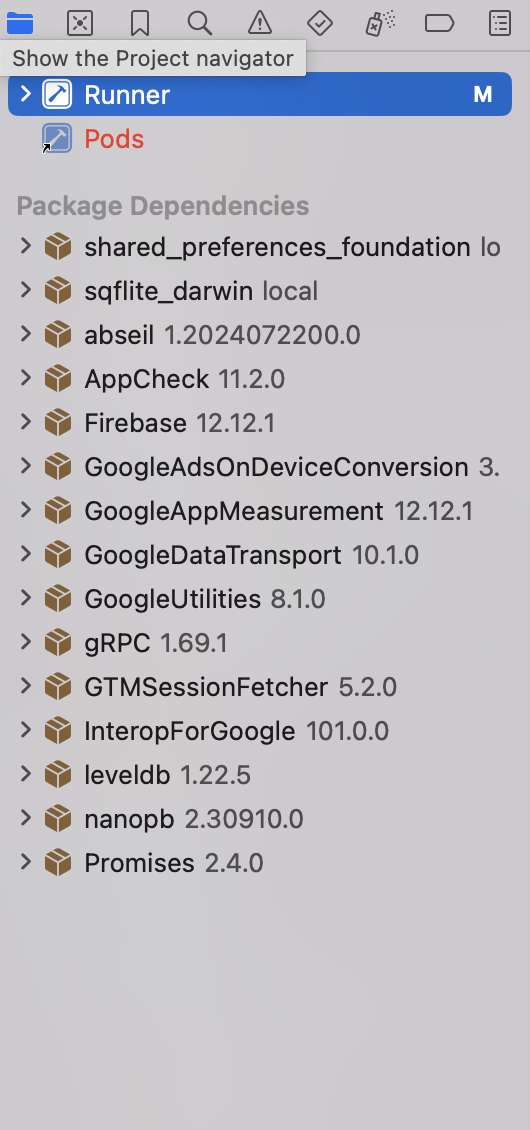
Once added, the left-side Project Navigator shows the packages under Package Dependencies. That confirms they're resolved and ready.
For packages other than Firebase: repeat the same process—paste the GitHub URL for that Swift package, select products, add to the Runner target.
Step 6: Clean Everything and Run
Go back to your project root (not the ios folder) and run the full clean sequence:
flutter clean
rm pubspec.lock
flutter pub cache clean
flutter pub get
Now run the project from VS Code or the terminal:
flutter run
Flutter will not invoke pod install this time. SPM handles the native iOS dependencies. The build succeeds, the app launches, and when you look inside your ios folder—no Podfile.lock, no Pods directory. CocoaPods is gone.
What Happens with Packages That Don't Support SPM Yet
Here's what the official docs bury in a warning but don't explain clearly: you can keep using CocoaPods-only packages after migrating to SPM, and your build will still work.
Say you use geolocator, and it hasn't been updated in 10 months and has no Package.swift file. Add it to pubspec.yaml, run flutter pub get, then flutter run. Flutter detects that geolocator only supports CocoaPods. It auto-generates a minimal Podfile for that dependency only and runs pod install just for it. You'll see a Podfile and Pods folder come back—but open Podfile.lock and check what's in there. Firebase is nowhere in it. Firebase is managed by SPM. geolocator is handled by CocoaPods. They run in parallel without conflict.
The practical takeaway: migrate what you can now. Let Flutter's fallback handle the rest. The ecosystem is moving fast—packages that are CocoaPods-only today will add SPM support over the next few months. Keep an eye on each package's GitHub for a Package.swift file appearing in the ios/ or darwin/ directory. That's the signal that SPM support has landed.
If the Build Fails: Lexical Errors and Dependency Issues
If you hit a build failure—especially lexical errors, unresolved symbols, or dependency version conflicts—run this full debug sequence in order. Don't skip steps.
flutter clean
flutter pub cache clean
flutter pub get
flutter pub outdated
flutter pub upgrade --major-versions
What each command does: flutter clean wipes the local build cache and compiled artifacts. flutter pub cache clean clears the global pub cache, forcing a fresh download of all packages. flutter pub get re-resolves and fetches dependencies from scratch. flutter pub outdated lists every package with a newer version available, including major versions your current constraint excludes. flutter pub upgrade --major-versions updates all packages to the latest major version, which often brings SPM support that wasn't in the version you were pinned to.
Run the project again after completing the sequence. This clears the vast majority of post-migration build issues.
Error: "Target Integrity — requires minimum platform version 15.0, but this target supports 12.0"

You missed the deployment target update in the prerequisites. Go back to Xcode → Runner target → General → Minimum Deployments → set to iOS 15.0, then run flutter build ios --config-only before trying again.
Error: "Module not found" or "Framework not found"
The package you added in Xcode wasn't linked to the Runner target. In Xcode, open Build Phases → Link Binary With Libraries and check whether the package product is listed. If it's missing, click the + button and add it manually.
Build hangs on first SPM resolution
Normal on the first run—SPM is downloading and compiling packages fresh. Give it 3–5 minutes. If it stalls past that, clear Xcode's derived data and retry:
rm -rf ~/Library/Developer/Xcode/DerivedData/*
The CI/CD Side
If you run GitHub Actions, Bitrise, or any CI pipeline for iOS builds, remove the pod install step. SPM resolution is handled automatically during flutter build ios. Your CI runner needs macOS with Xcode 14 or later (which ships with SPM built in)—no Ruby, no CocoaPods installation step required.
Before (CocoaPods):
cd ios && pod install && cd ..
After (SPM):
# Nothing needed — SPM resolves during flutter build ios
If some of your packages still fall back to CocoaPods, the Podfile gets auto-generated during the build and pod install runs automatically for those packages. You don't need to add it back manually.
Three Deadlines Worth Keeping on Your Calendar
October 2026: Firebase stops publishing new SDK versions to CocoaPods. Projects on CocoaPods get frozen on the last-published Firebase version—no features, no security patches, no updates.
Flutter 3.44 (shipping soon): SPM becomes the default for all new Flutter iOS and macOS projects. Existing projects continue to work, but the ecosystem's center of gravity has shifted.
December 2, 2026: CocoaPods trunk goes permanently read-only. No new pods, no updates to existing pods. Any dependency that hasn't shipped an SPM version by then is stuck forever at whatever version existed on that date.
Five months is enough time to migrate without pressure. Don't burn it.
Sources: Flutter Official Documentation — docs.flutter.dev/packages-and-plugins/swift-package-manager/for-app-developers | Firebase CocoaPods Deprecation — firebase.google.com/docs/ios/cocoapods-deprecation | Flutter Team Blog — blog.flutter.dev (April 2026, "Saying goodbye to CocoaPods") | CocoaPods Official Blog — blog.cocoapods.org | GitHub Flutter Issues #163186, #178627 — github.com/flutter/flutter